AI Employees, Safely · For business owners
Vercel and Context.ai: how an AI tool's Google access became a breach
Short answer A hosting company, Vercel, was breached after an employee let a small AI tool, Context.ai, act inside their work Google account. Attackers broke into the tool's maker, took that stored permission and reached some customers' keys. Check which apps your staff let into Google or Microsoft accounts; remove unused ones.
Vercel is a company that hosts websites and apps for other businesses, so it stores their passwords and API keys, the codes one program uses to log in to another. Context.ai made a small AI tool that worked inside a person's Google account, writing emails and documents for them.
To use a tool like that, you connect it to your account. A “Sign in with Google” screen lists what the app wants, and you click Allow. That click is an OAuth grant: a standing permission the app keeps, like a valet key, and can use whenever it likes until someone takes it back.
In 2026 attackers broke into Context.ai, took the grant one Vercel employee had given it, and used it to reach Vercel and read some customers' stored keys. If your staff connect AI tools to their Google or Microsoft work accounts, other companies hold keys like that to your business too. The one thing to do: list the apps your staff have let in, and remove the ones nobody uses.
At 11:04 in the morning, Pacific time, on Sunday 19 April 2026, Vercel posted the ID of Context.ai's Google app in its security bulletin and asked every administrator of Google Workspace, Google's business email and documents service, to check whether their staff had used itSource 1. Vercel closed the incident on 16 OctoberSource 1.
How one Google sign-in became a Vercel breach
Context.ai was compromised; the attacker used that access to take over the employee's Google Workspace account, which opened the employee's Vercel account. From there they moved into a Vercel environment and decrypted customers' environment variables that were not marked sensitiveSource 1. Environment variables are the settings a hosting platform hands your app when it runs, often including API keys and database passwords.
Context.ai's statement, offline by early May and cited here from an archived copy, gives its side. Its product was called AI Office Suite. In March it found and stopped an intruder in its Amazon cloud account, then shut that environment down to retire the product. Later it found that OAuth tokens, the stored form of those grants, belonging to some users had been stolen while that environment was still running. One was used to get into Vercel's Google WorkspaceSource 2.
Context.ai adds that “it appears” at least one Vercel employee enabled “allow all” on every Google Workspace permission the app requestedSource 2. Those permissions were meant to let the agents write emails and documents as that person, and they let whoever held the token do the same.
Vercel says “a limited subset” of customers had those variables read, and later found a small number of additional affected accountsSource 1.
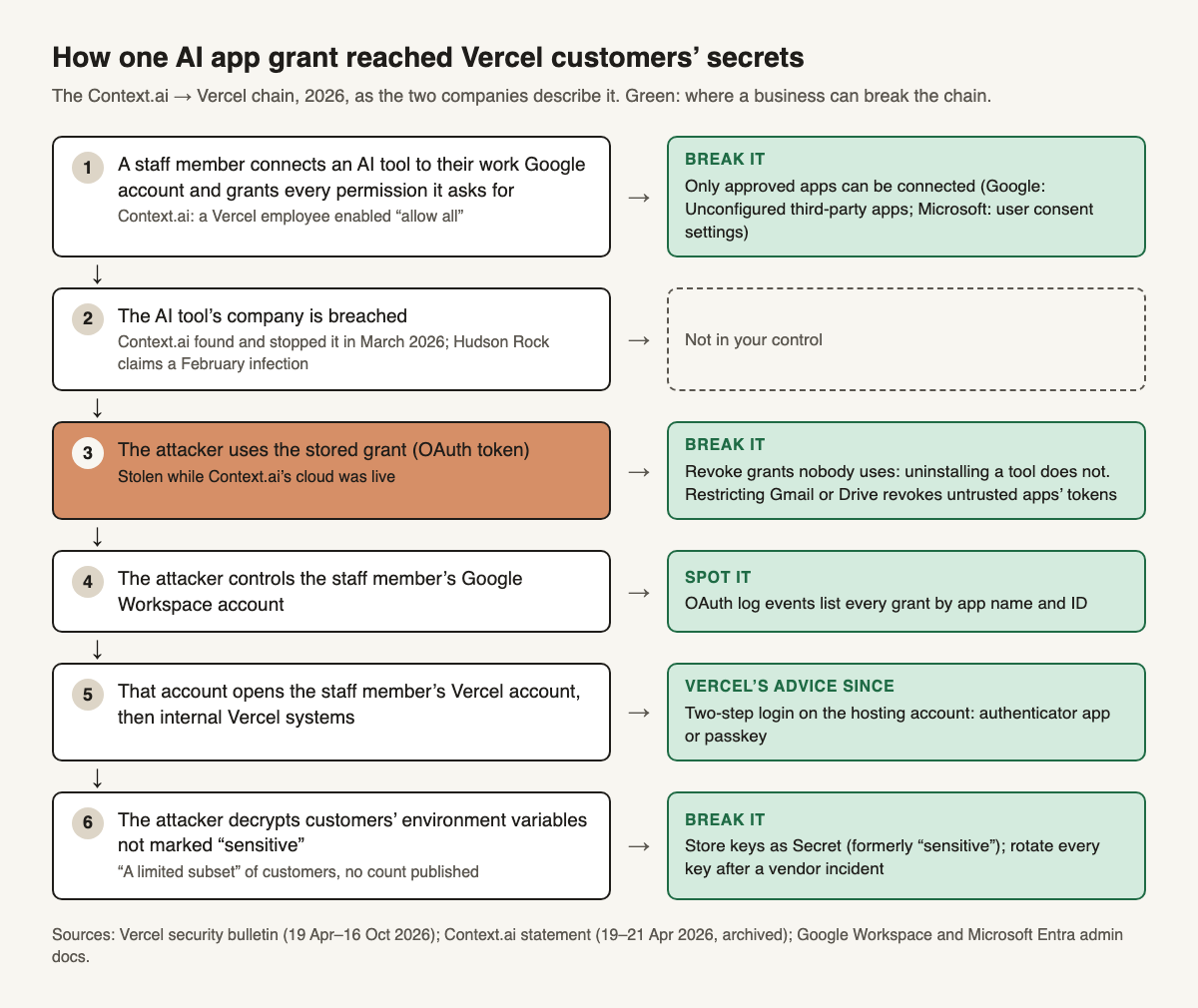
Image description
Title: How one AI app grant reached Vercel customers' secrets. Subtitle: The Context.ai to Vercel chain, 2026, as the two companies describe it. Green: where a business can break the chain. Step 1: A staff member connects an AI tool to their work Google account and grants every permission it asks for (Context.ai: a Vercel employee enabled 'allow all'). Break it: only approved apps can be connected (Google: Unconfigured third-party apps setting; Microsoft: user consent settings). Step 2: The AI tool's company is breached (Context.ai found and stopped it in March 2026; Hudson Rock claims a February infection). Not in your control. Step 3, highlighted: The attacker uses the stored grant (OAuth token), stolen while Context.ai's cloud was live. Break it: revoke grants nobody uses, because uninstalling a tool does not; restricting Gmail or Drive revokes untrusted apps' tokens. Step 4: The attacker controls the staff member's Google Workspace account. Spot it: OAuth log events list every grant by app name and ID. Step 5: That account opens the staff member's Vercel account, then internal Vercel systems. Vercel's advice since: two-step login on the hosting account, with an authenticator app or passkey. Step 6: The attacker decrypts customers' environment variables not marked 'sensitive' ('a limited subset' of customers, no count published). Break it: store keys as Secret (formerly 'sensitive'); rotate every key after a vendor incident. Footer: Sources: Vercel security bulletin (19 Apr to 16 Oct 2026); Context.ai statement (19 to 21 Apr 2026, archived); Google Workspace and Microsoft Entra admin docs.
What is confirmed, what is only claimed, and what is still disputed
- “Hundreds of users” is not Vercel's customer count. Vercel used the phrase about Context.ai's OAuth app, which it said potentially affected “hundreds of users across many organizations”Source 1. Neither company has said how many Vercel customers were hit.
- The ShinyHunters story is a forum claim. ShinyHunters is a name used by a known hacking group. A poster using it offered Vercel data and spoke of a $2 million ransom demand. People tied to the group denied it to BleepingComputer, a security news site, which could not confirm the dataSource 3.
- How it began is still a claim. Context.ai says it found and stopped an intruder in its cloud account in March, and hasn't said how they got in. Hudson Rock, a firm that tracks password-stealing malware, claims a Context.ai employee's computer was infected in February and that the stolen logins included Google WorkspaceSource 4.
- Blame shifted. On 20 April Context.ai wrote that Vercel's internal OAuth settings “appear to have allowed” the broad grant; the next day that line was goneSource 5.
OAuth is a valet key, and the valet keeps a copy
A car's valet key starts the engine but won't open the boot; a grant likewise covers only what the app asked for. The catch is what the app keeps: Google gives it a short-lived access token plus a refresh token, which lets it fetch new access tokens at will. The app stores that refresh token on its own servers: the valet key, sitting in someone else's building.
Google's docs list what ends a refresh token, including revocation by the user or an admin, six months unused, a password change on a token covering Gmail, and an admin restricting the serviceSource 6. The vendor can also void every token at once by deleting its app at GoogleSource 7. Shutting down its own servers does not.
If that company is breached, the attacker needs neither your staff member's password nor the code from their phone. The key already exists.
Uninstalling the AI tool does not take the key back
Context.ai shut down the cloud environment behind AI Office Suite in March, after the tokens had been copied. It later said its OAuth app had “since been taken down”, without a date; neither company has said on which day the stolen token was used.
On your side: someone tries an AI meeting-notes tool, removes the extension, cancels the trial. None of that touches the grant held at Google or Microsoft. It ends when someone revokes it, or when the provider's expiry rules catch up.
Your staff can remove a grant themselves: on the linked apps page of their Google Account, they pick the app, choose See details, then Remove accessSource 8.
How to check yours this week
None of this needs code: an administrator login and about an hour. Go in order, so staff don't lose tools they rely on.
Google Workspace
- See what has access. Following Google's admin help, go to Menu > Security > Access and data control > API controls in the Admin console, then click Manage App Access. The Accessed apps list shows the third-party apps your staff have connected; Google says it can take 48 hours to reflect a changeSource 9.
- Look back. Menu > Reporting > Audit and investigation > OAuth log events records grants with the app's name, its ID and the permissions it was givenSource 10. Search it for every AI tool your staff tried and dropped.
- Mark the tools you rely on. Set the apps you approve to Trusted before changing anything else. Limited apps lose access to any service you restrict.
- Block what nobody uses. On Manage App Access, point to an app, click Change access and choose Blocked.
- Cut off old grants in one move. Go back to API controls, click Manage Google Services, tick Gmail or Drive, click Change access and choose Restricted. Google says untrusted apps already installed stop working and their tokens are revokedSource 9. Try it on a small group first.
- Decide who can connect new apps. Under API controls, open Settings. The Unconfigured third-party apps setting defaults to “Allow users to access any third-party apps”Source 9. Change it to the option that allows only apps asking for basic Sign in with Google info.
Microsoft 365
- Limit who can say yes. Microsoft's consent guide gives the path: sign in to the Microsoft Entra admin center, where Microsoft 365 sign-ins are managed, as a Global Administrator and go to Identity > Applications > Enterprise apps > Consent and permissions > User consent settings. By default, staff can approve apps for anything that doesn't need an administrator. Microsoft recommends “Allow user consent for apps from verified publishers, for selected permissions”Source 11. Existing grants stay as they are. Turn on the admin consent workflow too, so staff can ask.
- Review what is already there. In Enterprise apps > All applications, pick an app, then Permissions. The User consent tab shows what individual staff granted. Revoking those takes Microsoft's scripting tools, not this screen, so hand it to your IT personSource 12.
- Shut an app out today. Open the app, choose Properties, set Enabled for users to sign-in? to No, and save. Microsoft says this prevents all tokens from being issued for that appSource 13.
Your hosting platform
Vercel says the attacker decrypted variables not marked sensitive. From 19 to 22 April the bulletin also said it had no evidence sensitive values were accessed; Vercel removed that line in its 22 April updateSource 14. Since 24 August 2026, Vercel has replaced the sensitive switch with two types: Config, which stays readable after saving, and Secret, which can be replaced but never read back; older sensitive variables count as SecretsSource 15. Ask whoever runs your site to confirm every password, API key and token is a Secret, and ask the same on other platforms.
When a vendor tells you it was breached
Rotate every key that vendor could see: issue new ones and switch the old ones off. Vercel told customers to rotate before deleting anything, since deleting a project or account does not stop a stolen key working. It also asked customers to turn on two-step login with an authenticator app or a passkeySource 1. Then block the vendor's app in your admin console.
The one setting we would change first
For a 20-person business on Google Workspace, our first change would be this: after marking approved tools as Trusted, allow only basic Sign in with Google for unconfigured apps, and name one person who approves AI tools. Every new grant becomes a decision, not a click. Then, each quarter, remove any app on the Accessed apps list that nobody can name.
This won't stop a vendor from being breached. It cuts down how many of your keys are lying around when one is.
- List the apps that hold grants to staff accounts Google: Manage App Access. Microsoft: Enterprise apps.
- Revoke grants for tools nobody uses Uninstalling or cancelling a tool does not revoke its grant.
- Limit who can grant new access Mark approved tools Trusted first. Google: basic sign-in only. Microsoft: verified publishers.
- Store hosting keys as Secrets On Vercel, Secret values can't be read back.
- Rotate keys when a vendor reports a breach Then revoke the vendor's app.
- Turn on two-step login on hosting accounts Authenticator app or passkey.
Next step
Get new posts as they come out
Every new post, in plain English and in depth. Follow the RSS feed.
Sources
- Vercel: April 2026 security incident (security bulletin, closed 16 Oct 2026). Retrieved . ↩ ↩ ↩ ↩ ↩ ↩
- Context.ai: Security Incident Response Statement, updated 21 April 2026 (Internet Archive copy). Retrieved . ↩ ↩
- BleepingComputer: Vercel confirms breach as hackers claim to be selling stolen data. Retrieved . ↩
- Hudson Rock (InfoStealers): Vercel breach linked to infostealer infection at Context.ai. Retrieved . ↩
- Context.ai: Security Incident Response Statement, 20 April 2026 version (Internet Archive copy). Retrieved . ↩
- Google for Developers: Using OAuth 2.0 to access Google APIs. Retrieved . ↩
- Google Cloud Help: Manage OAuth clients. Retrieved . ↩
- Google Account Help: Manage links between your Google Account and apps from other developers. Retrieved . ↩
- Google Workspace Admin Help: Control which apps access Google Workspace data. Retrieved . ↩ ↩ ↩
- Google Workspace Admin Help: OAuth log events. Retrieved . ↩
- Microsoft Learn: Configure how users consent to applications. Retrieved . ↩
- Microsoft Learn: Review permissions granted to enterprise applications. Retrieved . ↩
- Microsoft Learn: Disable user sign-in for an application. Retrieved . ↩
- Vercel security bulletin as of 20 April 2026 (Internet Archive copy). Retrieved . ↩
- Vercel changelog: Environment variables now use Config and Secret types (24 Aug 2026). Retrieved . ↩